
Content
Training Resources for Solidarity Tech
This is a basic walkthrough of Solidarity Tech. It explains how the tool is used during the Listening Tour to add contacts, log conversations, and capture responses through the Enough Should Be Enough (ESBE) survey.
[See Google Doc Version Here]
What does Solidarity Tech do?
Solidarity Tech is the digital tool we use during the Listening Tour to document conversations, capture community feedback and through surveys, and help better understand the needs and priorities of the communities in North Carolina.
Getting Started with Solidarity Tech
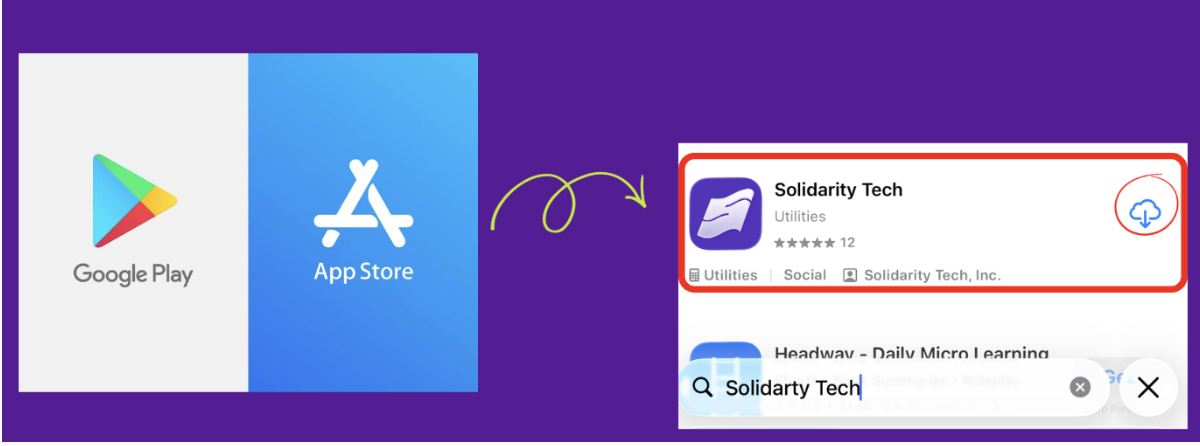
Download the Solidarity Tech app from your Apple App Store or Google Play Store.
Creating an account in ST
Create your account using the Magic Link sent to you after checking in at one of the Listening Tour Trainings.
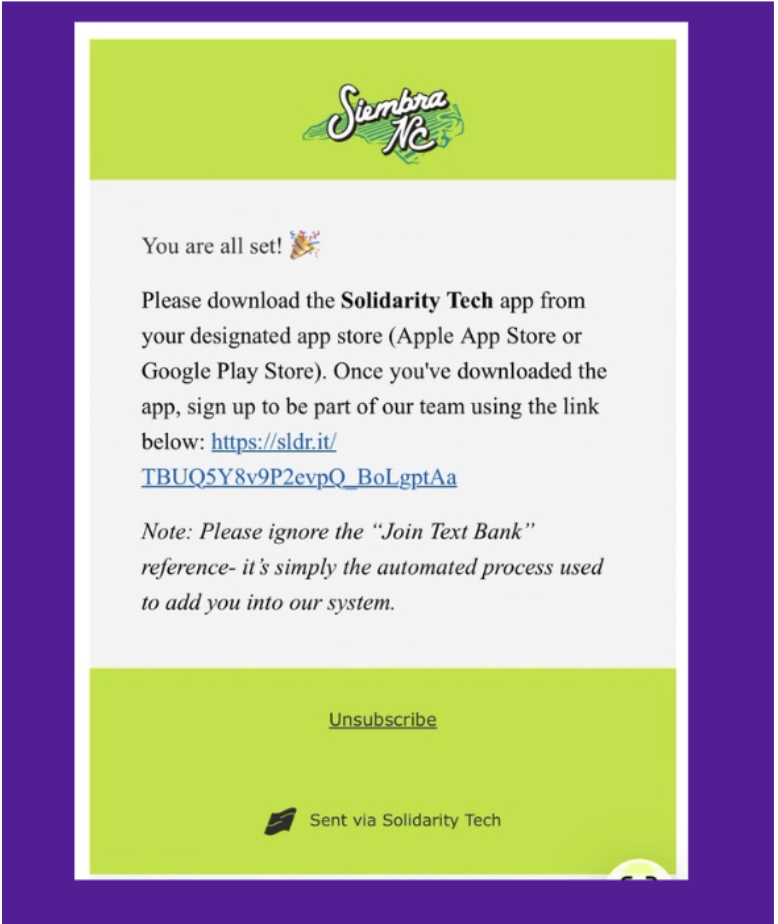
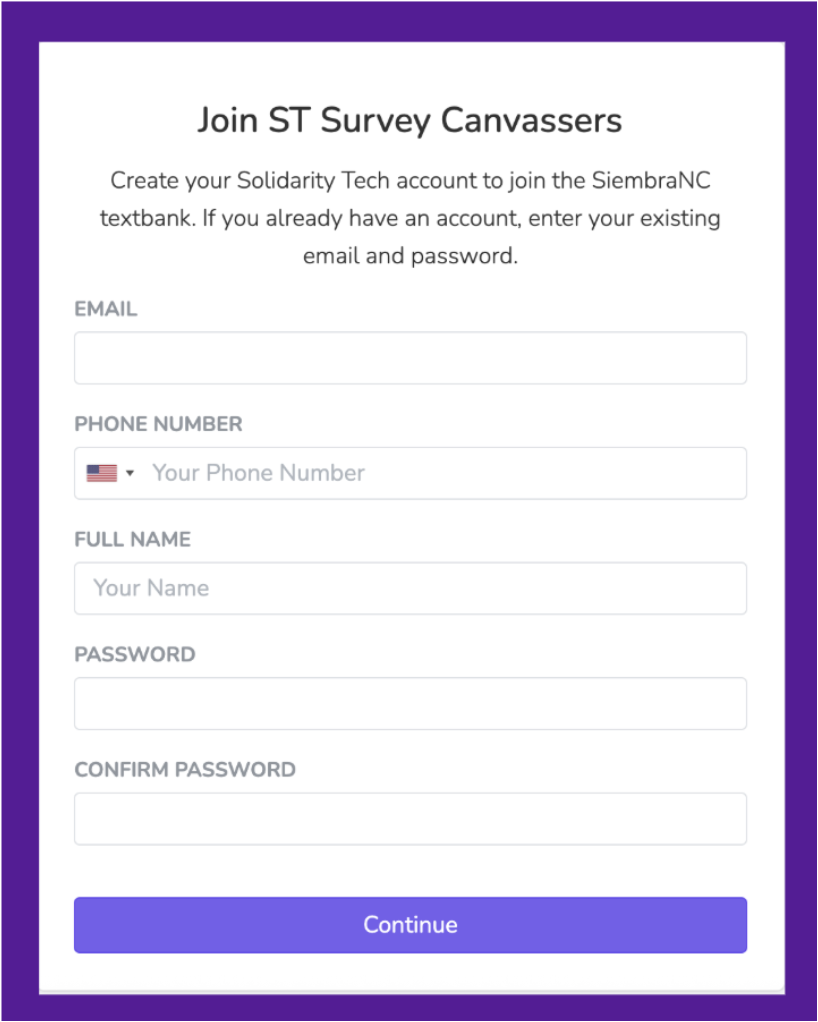
After clicking on the Magic Link, you will be asked to create an account with Solidarity Tech. Please store your login information somewhere safe- such as your Notes app, a password manager, or another secure place. This account will be your key to accessing the tool throughout your journey.
Note: Please ignore the “Text Bank” reference in the message. This is simply the automated way the system adds you into our universe.
At a glance
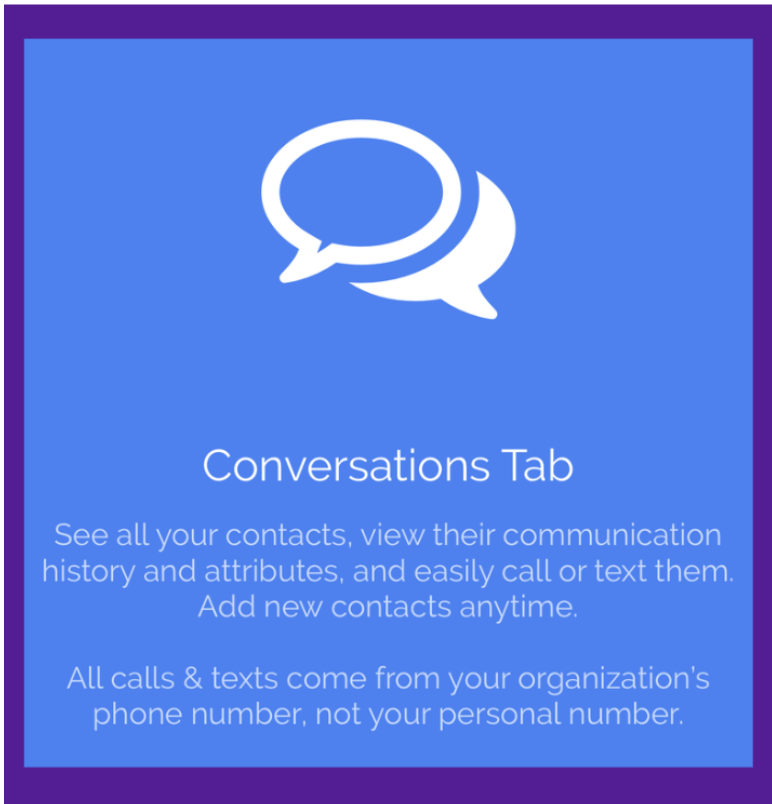
Once you log into ST, you will mainly work inside the Conversation tab. The Conversation tab is located at the bottom of your screen- it is the middle icon in the lower navigation bar.
Adding a contact
To add a contact:
Locate the click the Add Person (+) icon.
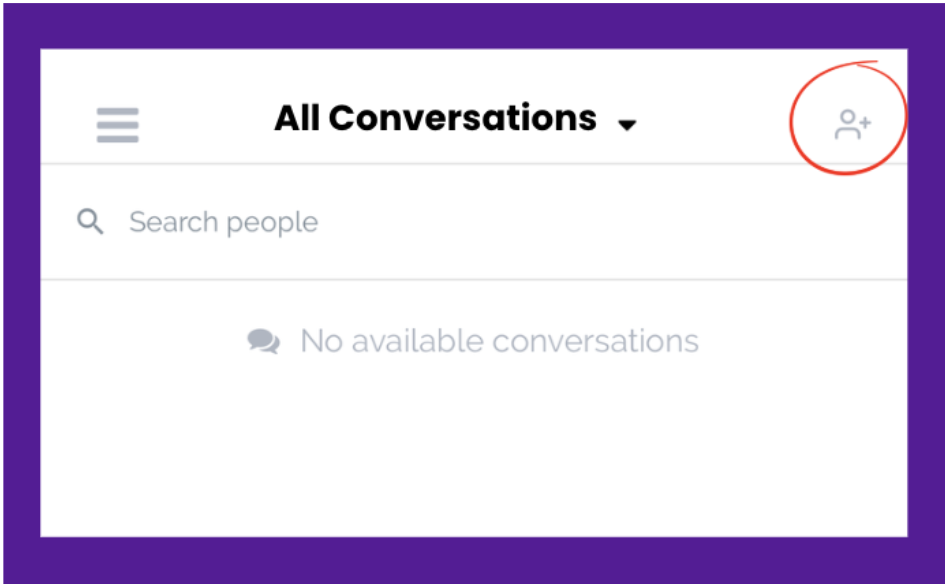
Enter the contact’s information:
Phone Number
Email (if you have it)
First and Last Name
Zip Code
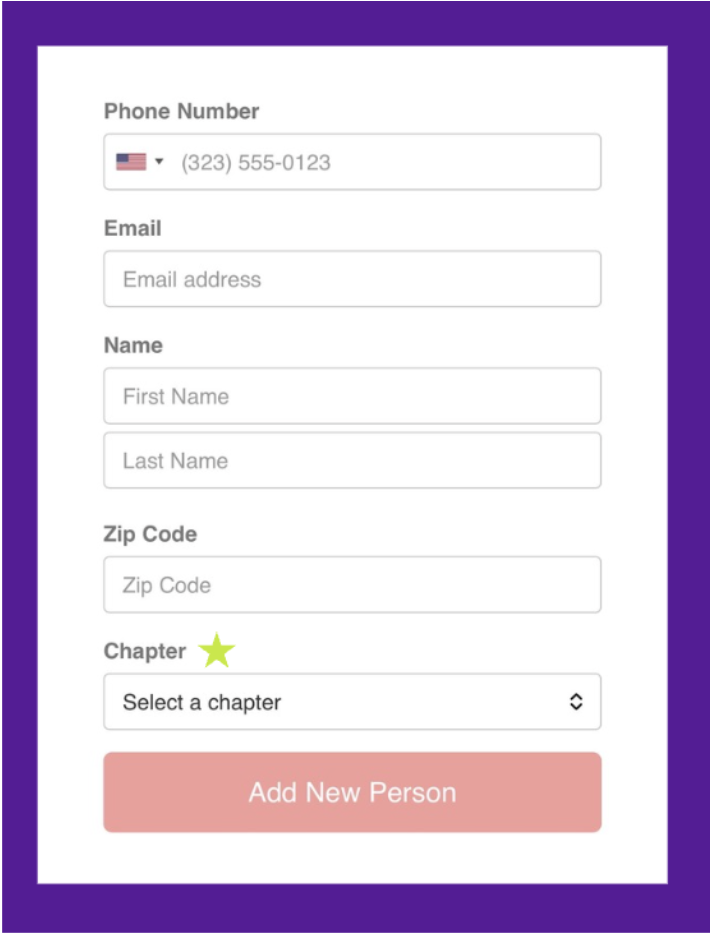
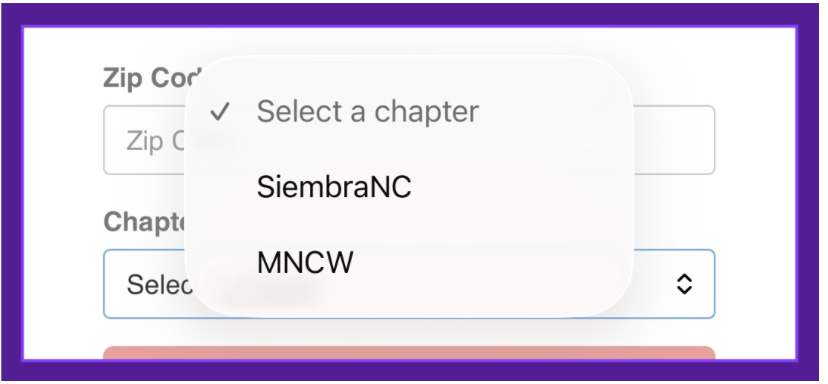
Assign the contact to based on Chapter
If you are from SiembraNC → add them under SiembraNC Chapter
If you are from MNCW → add them under MNCW Chapter
Finding your contact
After adding a contact, you may need to locate them in the system.
To do this:
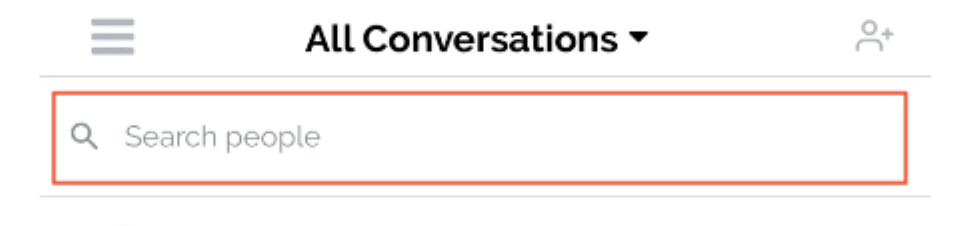
Change My Conversations to All Conversations using the dropdown menu
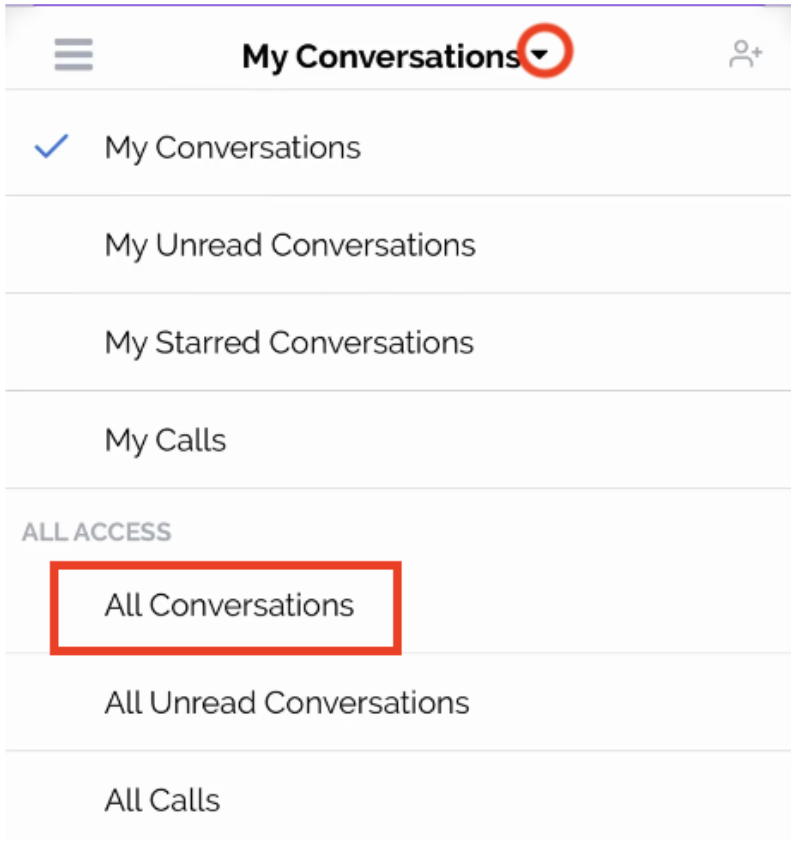
Click the search bar
Type the contact’s full name
* If you cannot find the contact in the system, it likely means the contact has not been successfully added.
Logging Listening Tour Conversations (Survey)
After you have your conversation with a contact, you will log it using the survey tool.
To access the survey:
Open the contact’s profile
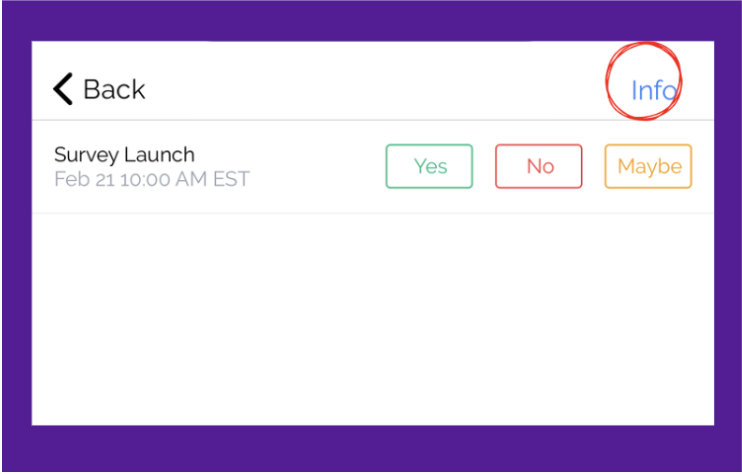
Click the Info tab
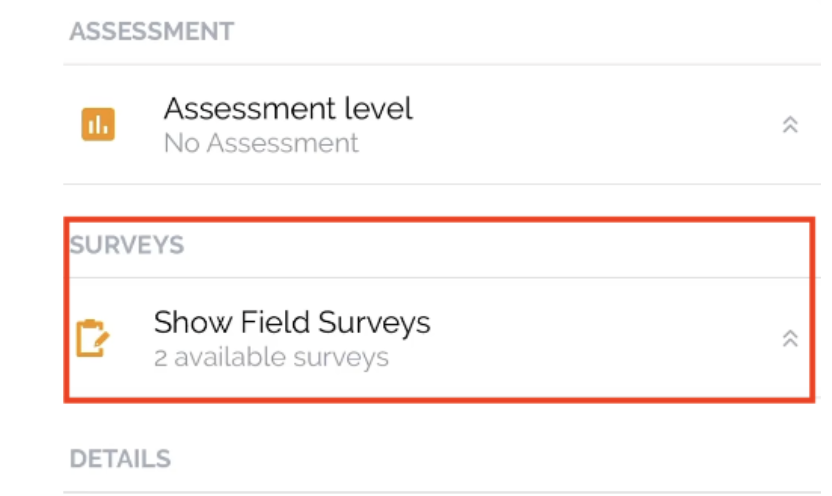
Scroll down to Field Surveys
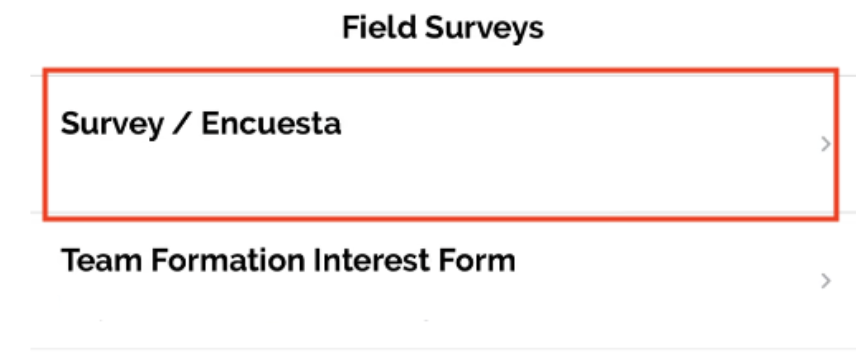
Click Survey / Encuesta
The survey includes
Open-ended questions
A scale rating questions
A yes or no question
These questions help capture the main insights from Listening Tour conversations.
Important tip for the scale questions: When answering the scale rating questions, make sure to select the white dot on the scale. Click the gray area will not register the response.

For additional support
Check out our video demos
Submit a troubleshooting form
Join our office hours